//GIT BASICS
    git init
    git clone https://github.com/XXXXXX
    git remote add origin https://github.com/XXXXXXXX
    git status
    git log
    git diff
    git rm --cached {file}  - Eliminar archivo en repositorio online github o gitlab
    git add . / {file}
    git commit -m "message"
    git pull
    git push origin main
    git push -u origin master
    git branch
    git branch {newName}
    git checkout {branchame}
    git merge {branchname} (must checkout to main for example) origin main
    git branch -d {name}

    git branch -m master main : rename master to main in local
    git mv {file} {folder}/{filename} Move a file inside a directory


    git log --oneline
    git reset --hard
    //GIT BASICS
    PHoto
    Ramas: Divide un archivo en 2 ramas o flujos de trabajo. Para que dos programadores puedan trabajar en un flujo específico
    Consejo:Crear archivos de respaldouna vez hay suficiente complejidad, con cambios más específicos
    Abrir: Gitbash desde Windows o click derecho desde la carpeta: GitBash here
    VSStudio: Ctrl + ñ terminal

    Configurar:
    git config --global user.name "Al XXX"
    git config --global user.email "xxxx@gmail.com"
    git config --list
    git config XXX (one of the setting)
    git help > git help commit
    clear

    U Unfollow
    A added
    M Modificaciones
// SSH
// GIT + GITLAB
    // ERRORS

    git remote add {url}// You can add one for github and another for gitlab
    After clone:
    fatal: not a git repository (or any of the parent directories): .git -> move to directory ( cd {name})
    git remote -v

    error: src refspec master does not match any. No master branch-> git checkout -b master
    git push -u origin master

    git pull  {main}
    git reset --hard (after deleting files locally, you can recover them like this)
    //GIT COMANDS
    git init: creamos directorio de trabajo oculto. Para ver carpeta > vista > mostrar u ocultar / elementos ocultos
    git add xxxxx : Añadimos al area de staging/ensayo el archivo
    git add . : Añadir todos los archivos
    git commit xxxx: manda los archivos que se hayan añadido del area de staging/ensayo al area de repositorio local. manda los archivos que esten añadidos solo, no todos los de la carpeta
    add + commit: git commit -am XXXX: añade y manda archivos
    git status -s: ver los archivos que no están en el repositorio, o los que se han modificado pero no se han mandado aun
    git log --oneline : listado de todas las copias con el codigo y descripcion
    git reset --hard : Restauracion del archivo al código de la instantanea que nos interesa retornar

    git commit --amend : Modificar los detalles del cambio Titulo
    git diff: See differences
    git remote remove origin
    //GIT ACCIONES EJEMPLO
    creamos carpeta, archivo html, carpetas css y js con archivos
    git init: creamos el directorio
    consola git status -s : muestra lo que hay en el proyecto y cosas sin agregar a git,

    git add index.html
    git commit -m "Comienzo del proyecto"

    Si hacemos cambio en el archivo nos aparecera con git status -s:

    Hacer un respaldo tras cambios:
    1. Hay que hacer git add del archivo o archivos
    2. git commit -m "Primer Cambio del proyecto"

    git log --oneline: Vemos los cambios

    restaurar
    // SUBIR A GITHUB DESDE CONSOLA
    Importante: la cuenta de github de manera que permita push que puedan mostrar email. Ver settings emails
    Crear repositorio > Opciones quick setup > "push an existing repository from the command line"
    git remote add origin https://github.com/XXXXXXXX
    git push origin master: pide introducir usuario y contraseña
    //Optional
    git branch -M main
    git push -u origin main
    git checkout // para ver los cambios a subir
    // MULTIPLE REMOTES
    Crear repositorio > Opciones quick setup > "push an existing repository from the command line"
    git remote add origin https://github.com/XXXXXXXX
    git push origin main

    git remote add origin2 https://gitlab.com/XXXXX
    git push origin2 main
    //GIT PULL - MODIFICAR EN GITHUB Y CLONAR repositorio
    Modificamos archivos en github y damos a commit changes
    Traer las modificaciones de remoto a local: git pull
    //GIT TAGS
    Versiones del proyecto
    Github > repositorio
    Consola git tag 18-07-21v1 "Version 1.0 del proyecto" (si se usa git log --oneline se ve pero no se ha subido a Gitub)
    Para subir a github: git push --tags
    //GIT CLONE
    Si perdemos un proyecto en local, lo podemos clonar desde github
    Vamos al repositorio y en el boton de code copiamos la url
    Consola desde la carpeta: git clone https://github.com/XXXXXX
    Alternativamente se puede Descargar el zip
    //RAMAS o BRANCH
    Rama o linea de tiempo
    Puede haber varias, merge para unir
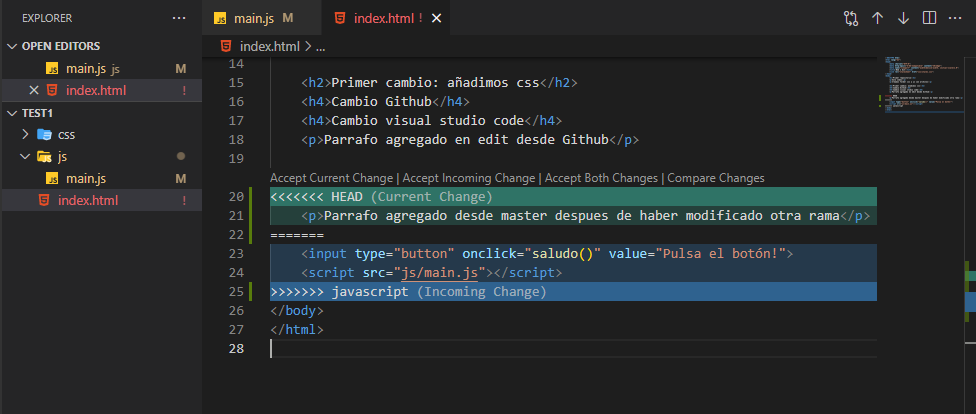
    Problemas: modificacion de un mosm archivo en rama master y rama alternativa

    Crear:
    git branch nombreRama Ex: git branch javascript
    Ver donde estamos:
    git branch: Nos indica las ramas y con asterisco y verde, si hago modificaciones y hago comits será en la que esté
    Cambiar rama:
    git checkout nombreRama Ex: git checkout javascript
    git checkout master

    CREAR REMOTO
    git push {origin} {testbranch}


    Hacemos cambios en los archivos
    git add .
    git commit -m "Definicion"

    Al cambiar de rama en consola, se cambian los archivos en visual code acordemente


    DELETE
    salir de la rama
    Git checkout {nameofbranchtogo}
    git branch -d {name}
    git branch -D {name} forces if no merged
    DELETE REMOTE
    git push remote --delete {name}
    git push origin --delete {name}
    //GIT MERGE
    Se hace desde la rama master
    git merge nameBranch    //   git merge javascript

    after merge git push origin main  // **
    and delete the other branch

    ERRORES: Si hemos cambiado diferentes cosas en diferentes branches